
How to Recover Files from Corrupted or Crashed Hard Drive
No more worries on Data Recovery, best tips and tricks from Experts.
I know data lost is a very stressful situation and obviously more often hard drive get corrupted, and your important data get stuck on the hard drive.
Furthermore, no matter what brand’s hard drive you use, its more often stop working without giving any sign. Most important question we often get from our clients, How to recover files from the corrupted hard drive if it contains essential files and folders? Can I fix the damaged hard disk without losing data? Yes.
Finally, this article will guide to some steps that if you follow, your data could be recovered back. And additionally, you can learn industry preferred best practices for data recovery.
How to Recover Files from Corrupted Hard Drive in 3 Steps
This process is DIY (Do It Yourself) and you can use Hasleo Data Recovery software for free. Yes, it’s free tool to check hard disk data condition, and most importantly it does not harm the Hard drive.
Hasleo Data Recovery software it has user-friendly interface and very simple to use and its perform best compare to its competitors such as Easeus, Staller, Wondershare Recoverit and so on.
Product features
- • Recover data from deleting, formatting, partition loss, OS crash, virus attack and other data loss cases.
- • Recover documents, emails, photos, videos, audio files and more.
- • Recover data from hard drive, USB drive, SD card and other storage media.
- • Recover data from BitLocker encrypted drive.
- • Creation of WinPE bootable media for emergency data recovery.
- • Recovers data from FAT, NTFS, exFAT and HFS+ drive.
- • Compatible with Windows 11/10/8.1/8/7/Vista/XP/2022/2019/2016/2012/2008/2003.
Step 1 : After you download and install Hasleo, open the software, and you can choose Deep scan for better performance results.
Step 2 : Now you have to select the drive from the list, make the selection correctly so it will be helpful. And click on Scan button.
Step 3 : After the scan gets completed, you can select files or folder, or you can select entire drives that you want to recover. Make sure you choose different location to save output scanned data.
Once you completed these steps, your data will be saved on your desired location. If you need expert help on the recovery process, you can call us anytime.
Sayprint Data Recovery offers Free Consultant and Diagnose, and no recovery no fee will be charged.
We can help you to recover data from these conditions
- Fix HDD, SSD, external hard drive, USB flash drive errors, and restore data from all RAID levels
- Recover lost partition that cannot be restored by data recovery software
- Fix disks that cannot be read or accessed because of bad sectors
- Fix disks that become GPT protected partitions
- Wipe data, unformat hard drive, Install/uninstall software or driver, etc.
How to Fix Corrupted Hard Disk Drive Without Formatting
After you successfully recover lost data from corrupted hard disk, you can also give a try to fix the issue. But keep in mind, it is always recommended not to re-use corrupted or crash hard drive. Because due to bad sectors, it has become unreliable for future use.
Tip 1 : Fix Corrupted hard drive using Windows CMD
Windows operating system has a Free utility command to fix corrupted hard drive, you can run CHKDHK to fix any bad sectors.
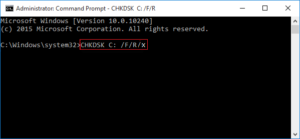
- Type chkdsk and hit “Enter” to check errors in the corrupted hard drive.
- Type chkdsk C: /f /r/x to let CHKDSK fix the drive. (C is the drive letter of your corrupted hard drive)
So when you put this command on the command prompt, it will ask you to confirm your action type yes. It will initially start checking and fixing bad sectors.
Tip 2 : Run a Disk Check to Fix Corrupted Hard Disk
Another free tool is checking with windows check disk feature. This is very helpful to fixing any issue related to hard disk
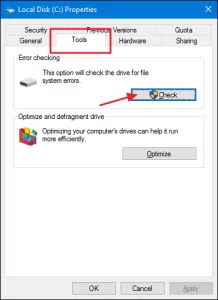
- Open This PC or Computer, right-click the hard drive, and select “Properties”.
- Click “Tools” and click “Check”.
- Select “Check local disk” and click “Start”.
- Close all running and open programs, select the option to let the system check upon the next boot.
- After this, restart the PC
Reason for Hard drive crash and what you can do?
There are several reasons for hard drive crash, sometime before the hard drive crash or failure it gave some unusual sounds, no response to commands, and throw error messages.
To prevent the hard drive failure, you should know what are the common signs and cause of it. As well, how to fix it.
- Repeated system crashes or reboots
- Unresponsive (frozen) or blank screen
- Error messages when trying to access files
- Missing files, files being deleted or moved (corrupted)
- CPU is unusually slow accessing and opening files
- Irregular noises such as clicking, beeping, grinding, etc.
- “Blue Screen of Death” error message
- Bad sectors increase
Mechanical hard drive damages caused when user drops storage media to the ground or on the water, and some device malfunction function or power conjunction issues.
Dust, water, or dropping are some reasons HDDs fail, shortening their lifespan. Avoid taking your device with you when it’s not needed, and cleaning it helps you conserve the hard drive and the data on it.
Logical Hard Drive recovery and how to fix it
If the data loss due to logical issue such as virus infection, accidentally deleted, BitLocker or bad sectors.
This can be recovered using DIY data recovery software. And it’s cost less money to get your files back to the system. Most of the cases we have observed 100% data were successfully recovered.
Physical Hard Drive recovery and how to fix it
Physical Hard Drive recovery and how to fix itIf the hard drive is physically damaged, it’s advisable that get it repaired or recovered the data from professional data recovery labs.
It is important, do not try it yourself unless you’re truly confident in the problem and solution.
Conclusion
Although you can perform some easy-fix on your own, most hard drive errors demand sterilized labs and technical knowledge. Therefore, we recommend that you always seek professional help in this case.
The best way to prevent data loss remains to do regular backups of your computer’s data. But, if any of these failures already happened, contact Sayprint Data Recovery Experts.


